Kiro CLI in Practice: Terminal Workflows, Key Commands, and What’s New in V3
 by Barış Emren
25 Kasım 202613 min read
by Barış Emren


As AI-assisted development matures, the center of gravity is shifting quietly. For the past few years, most of us have experienced AI coding within a graphical editor, with features like inline completions, a chat panel on the side, and a diff view for accepting or rejecting changes. This model is still effective, but an increasing number of developers are placing the agent elsewhere entirely: the terminal.At Sufle, we've written about refactoring code with Amazon Q Developer. In that post, we discussed using the command-line interface (CLI) alongside the integrated development environment (IDE) extension. This post delves deeper into the terminal aspect. We'll explain why terminal-based AI is important, how Kiro works as a product, the differences between the Kiro IDE and Kiro CLI, and the changes between CLI V2 and V3.
Kiro began as an AI IDE in July 2025, but has grown into a broader software engineering agent accessible through multiple channels. Today, Kiro is available as follows:
Kiro IDE: a Code OSS-based editor (what most people mean when they say "Kiro")
Kiro CLI: the agent in your terminal
Kiro Web: a cloud-first interface for starting and managing sessions
Kiro Mobile: transactional touches on the go (approve, check, nudge).
Kiro Crew: an open-source system for scheduling a crew of agents
The key architectural idea—and the reason the rest of this post makes sense—is that all these apps now sit on top of a single, shared agent harness. Previously, each app had its own agent (the IDE in TypeScript, the CLI in Rust, and the web in Python), meaning every feature had to be built three times and behaved slightly differently. Now, that has been consolidated into one engine that runs as a standalone process next to your code and communicates with each app via the Agent Client Protocol (ACP).One brain, many faces. The practical payoff is that a capability added to the harness shows up on every surface at once. Behavior is consistent no matter where you are. In the newest versions, a session can start on your laptop, continue running in the cloud, and be checked from your phone because it's the same agent the whole way through.
Before comparing apps, it's worth asking why anyone would give up a rich graphical editor for a text prompt.
In practice, terminal-based AI caters to two very different audiences who both want the same interface.
1. Developers who live in the shell: If you think in terms of flags and pipes, a graphical interface can be more of a hindrance than a help. These developers often run several agent sessions in parallel, peek at the code occasionally rather than reviewing every line, and rely heavily on their test suite as a safety net. The terminal keeps them in one place with their existing tools (tmux, Git, grep, and SSH) just one keystroke away.
2. Automation with no human in the loop: This is something a GUI simply can't do. Since the engine is separate from the user interface, you can wrap the agent in a shell script, add it to a CI/CD pipeline on GitHub or GitLab, and run it as a job instead of a conversation on someone's laptop. This is AI-assisted development with no UI whatsoever.
Here are a few concrete reasons why this approach resonates with how we work at Sufle:
Scriptability: The agent becomes just another command that you can compose, pipe, and schedule.
CI/CD integration: Code quality checks, migrations, and reviews can be pipeline steps.
Lower overhead: There is no need to switch windows because the agent is where your work already is.
Remote and headless environments: SSH into a server or container, and the agent will come with you — no desktop is required.
The Kiro team shared a valuable lesson: more surface area doesn't always mean more usefulness. After releasing a full terminal UI, they had to add a "lite" mode because some users found the full UI overwhelming. Terminal users often want less, not more.
Since both apps draw from the same engine, you can't make a wrong choice. You're not choosing a walled garden; you're choosing a front door. A better question is, "Which one is better for this task?"
Reach for the IDE when:
You're writing code in your editor and want AI woven directly into that workflow
You want visual feedback, such as inline suggestions, diff views, and syntax-highlighted panels
You're doing file- or project-based work, where seeing the changes before accepting them matters
You're on an enterprise team, and the editor is your home base
You want an easy introduction to agent-first work. The IDE's Agent Focus Mode lets you orchestrate multiple sessions without leaving the editor.
Reach for the CLI when:
You prefer the terminal workflow and think in commands
You need automation, scripting, or CI/CD integration
You want to run the agent headless, as a job, with no human in the loop
You're running several sessions in parallel and rely on tests rather than line-by-line reviews
You're working on a remote or headless machine over SSH
What You’re Doing | Reach For |
Write code in your editor with AI integrated. | IDE |
Perform a visual diff review before accepting changes. | IDE |
Terminal-native workflow (flags, pipes, and tmux). | CLI |
Scripts, CI/CD pipelines, headless jobs | CLI |
Running many parallel sessions | CLI |
Easing into agent-first orchestration | IDE (Agent Focus Mode) |
The honest takeaway is that you don't have to pick one forever. Use the IDE at your desk and the CLI in your pipeline. Let your setup—including your skills, steering files, custom agents, and permissions—travel with you because it lives around the shared harness rather than inside any single app.
Although you mostly interact with Kiro CLI through natural language, a set of slash commands makes everyday work far smoother. Type "/" in a session to see them all. Here are the ones we use most often: All of these run inside an interactive kiro-cli chat session.
Choosing a Model: /model
The /model command opens an interactive picker that allows you to switch the underlying model during a session. You can either tab to complete the process or pass an ID directly. To save your choice for future sessions:
/model                          # open the picker

/model set-current-as-default   # remember this model next time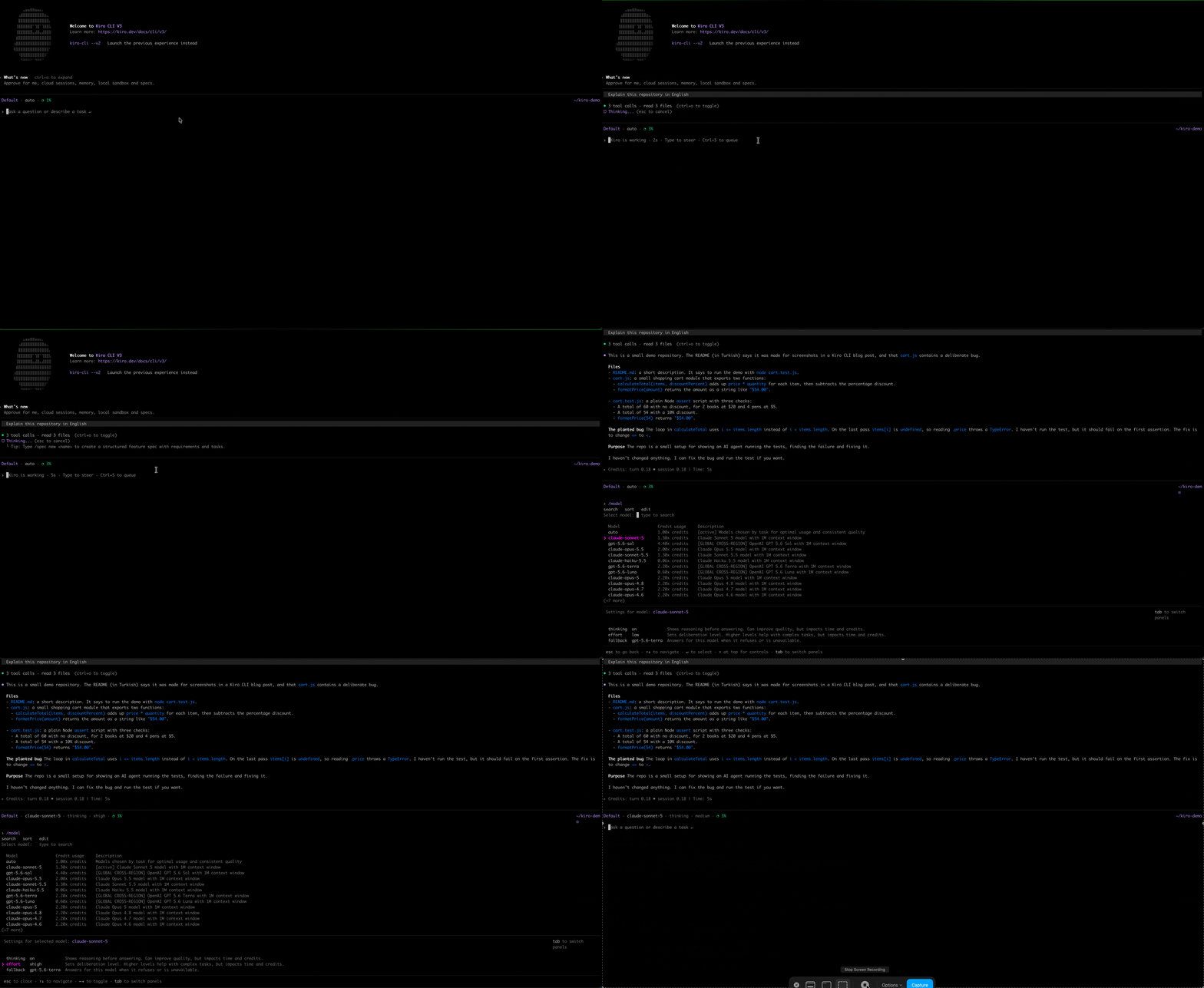
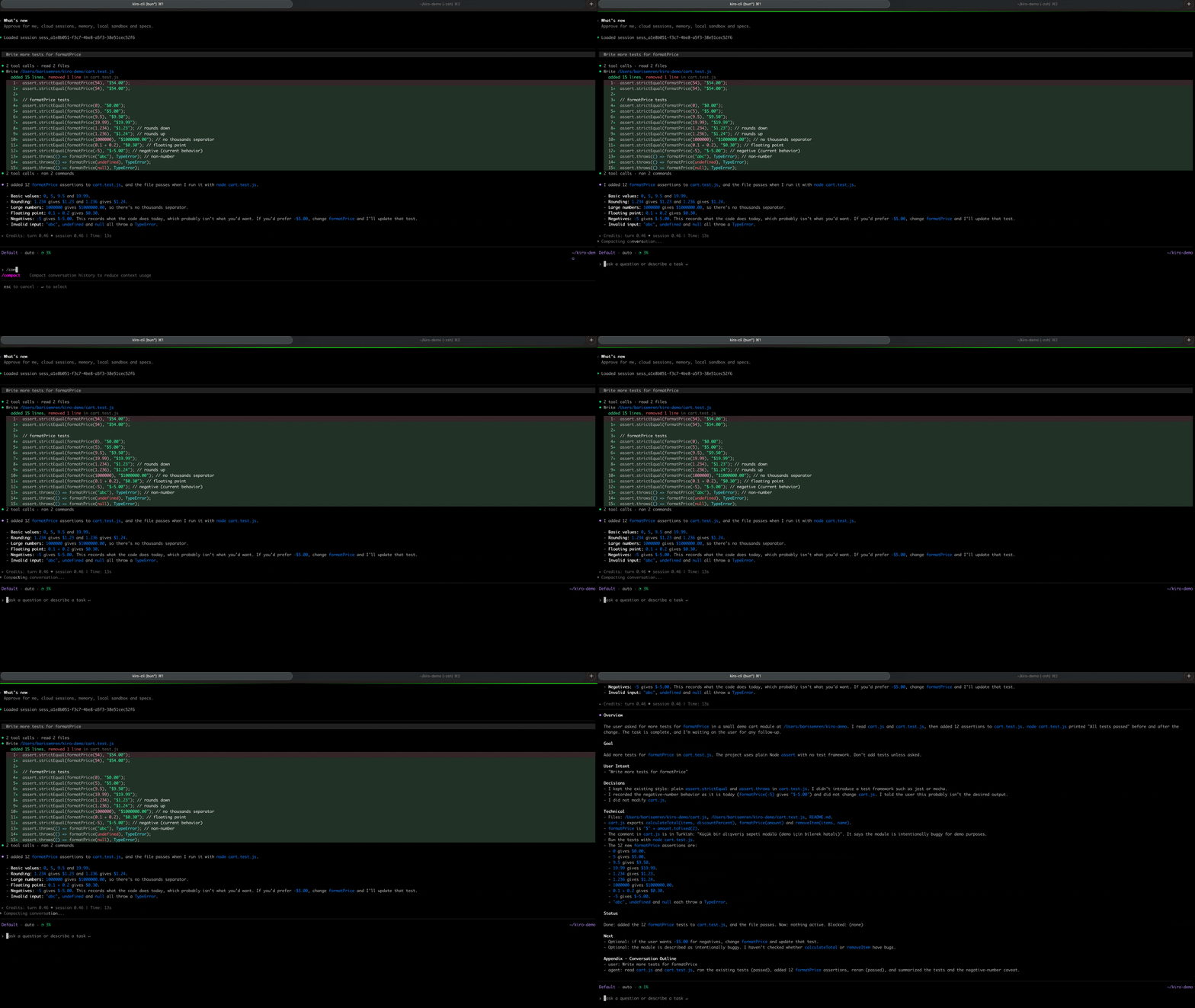
Managing Context: /compact
Long sessions eventually fill the model's context window. The /compact command summarizes the older part of the conversation, preserving your goals, decisions, and progress while compressing the verbose middle, so you can continue without starting over. Kiro also automatically compacts as a session grows. However, running it manually before a big new task helps keep things sharp.
Tuning How Hard the Model Thinks: /effort
This is one of the more underrated controls. The effort setting determines how much reasoning the model allocates to a task across five levels: low, medium, high, xhigh, and max. Lower effort results in faster, cheaper responses for simple tasks, while higher effort enables the model to reason through difficult problems. (Supported levels depend on the model.)
/effort high

/effort set-current-as-default   # save this effort for the current model
You can also set it at launch so the first prompt already runs at the right level:
kiro-cli chat --effort xhighResuming Earlier Work: /chat and /sessions
Kiro CLI saves your conversations per directory, so you can pick up where you left off. Inside a session:
/chat new [prompt]   # start a fresh conversation

/chat resume         # pick a saved conversation in this directory

/sessions            # open the V3 session dashboard (browse, bookmark, rename)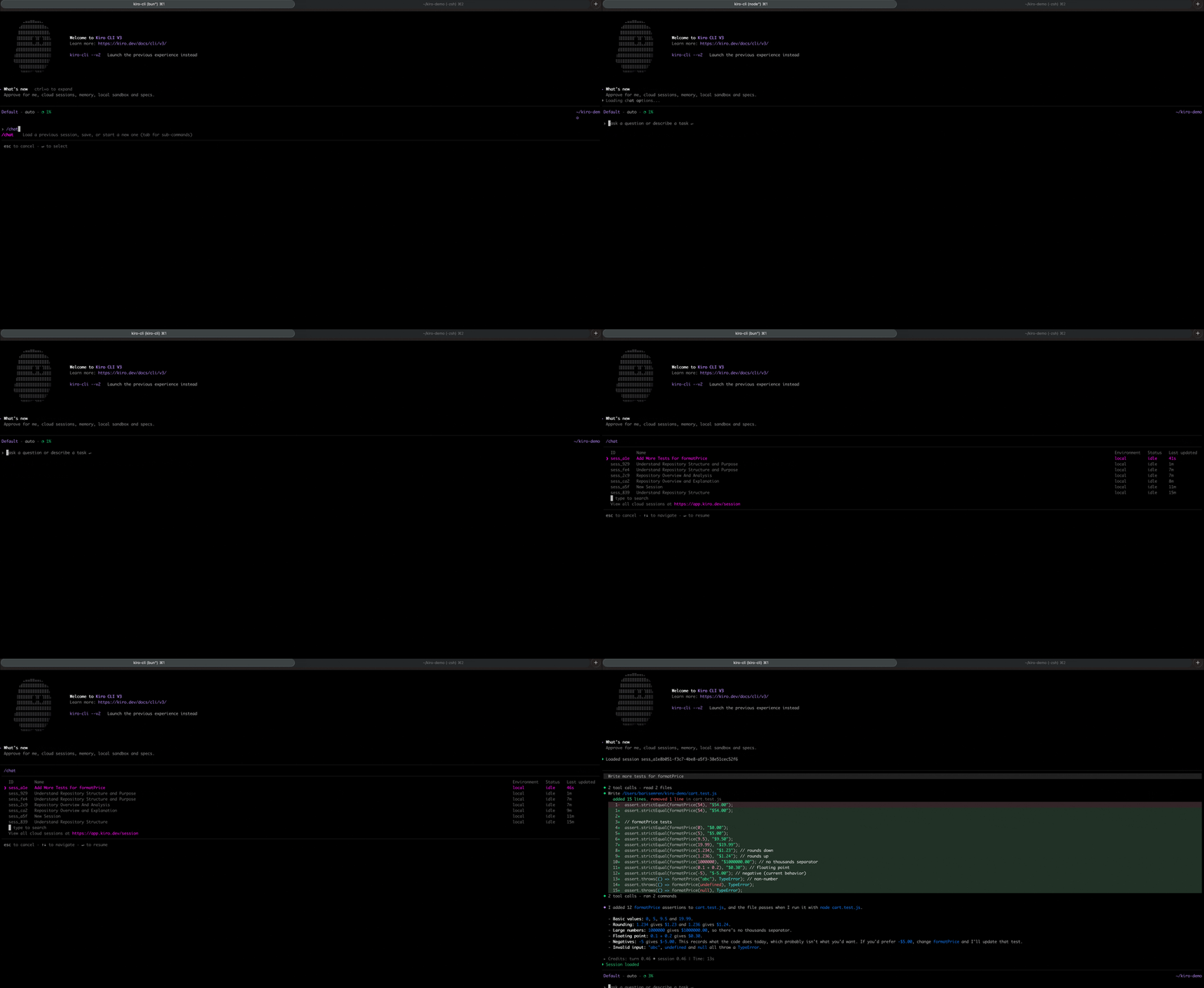
Or straight from the shell, without entering a session first:
kiro-cli chat --resume          # resume the last conversation here

kiro-cli chat --resume-picker   # choose which one to resume

kiro-cli chat --list-sessions   # list local sessions
Pasting Images: /paste
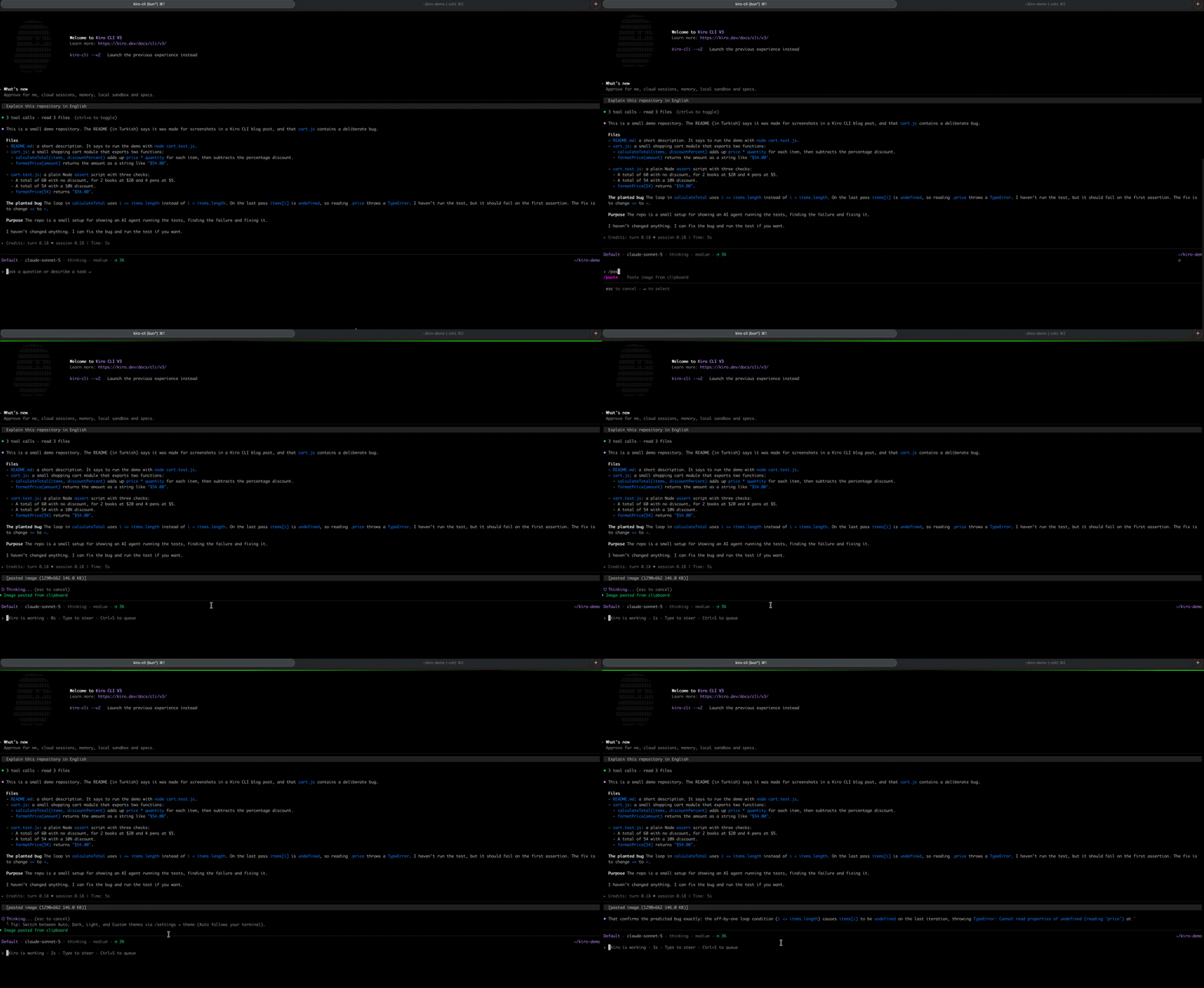
You can bring visual context into the conversation. Copy an image to your clipboard — a screenshot of an error, a UI mockup, a diagram — and /paste attaches it directly to your next message, no saving to a file first.
Keeping an Eye on Your Quota: /usage
Kiro CLI runs on a credit-based plan, so it helps to know where you stand. /usage shows your current usage information right in the terminal.

A Few More Worth Looking:
/rewind [turn] — fork the conversation from an earlier turn (files on disk stay unchanged).
/tangent — branch into a side thread without polluting your main context.
/plan — read-only planning mode: the agent can read and search but won't write files or run shell commands.
! — run a shell command yourself without leaving the session.
@<path></path> — reference a file or directory inline as context.
This is the part that most teams care about right now. Kiro CLI 3.0 was launched on November 3, 2026, and V3 is now the default experience. If you're still using V2, here's what you're moving toward.
The headline: V3 uses the same agent harness that powers Kiro IDE and Kiro Web in your terminal. V2's CLI had its own separate agent, but V3 uses a shared engine. This change unlocks almost everything below.
Key V3 Features:
Workflows (background and multi-step delegation): Assign Kiro a task that requires planning, implementation, and review, and the workflow will coordinate the necessary agents. Each step runs in its own session with fresh context, so the reviewer won't inherit the coding agent's reasoning. You can continue working in the main chat while the workflow runs in the background and pause or steer it as needed. Workflows are opt-in. Enable them in Settings before your first use.
Cloud sessions: Start a session with kiro-cli --cloud, attach a repository, and let Kiro work in a managed cloud sandbox. The agent continues to run after you disconnect, and you can resume from another machine. (Currently, cloud sessions only run in us-east-1, and IAM Identity Center organizations need an admin to enable them first.)
Spec mode in the terminal: The IDE's spec workflow is now in the CLI. You can work through requirements and design before Kiro writes any code. You can also leave inline comments on the document and choose which tasks to run — all from the terminal. Start with /spec new.
Tangent mode: Branch off into a parallel conversation without polluting your main session's context. This long-requested feature was reintroduced in V3 via /tangent.
Memory across sessions: Kiro can learn the commands and conventions of your repository in local sessions and recall them later without you having to explain them again. Manage it with the /memories command.
Better session management: The /sessions pane lets you browse, bookmark, and rename sessions, which is useful when you're running many of them.
Reusable setup: Global hooks share automation across workspaces and AGENTS.md files can now live in subdirectories (e.g., front-end conventions in one directory and back-end testing instructions in another), not just the repository root.
Approve for me: Kiro approves routine actions, blocks risky ones, and asks when unsure, so work no longer stops at every routine prompt. Your existing deny/ask/allow rules make the initial decision; Approve for Me only handles the unsettled cases and marks each action it approves.
Migrating From V2:
For most users, no configuration changes are needed for the switch. However, if you have customized agents, permissions, or integrations:
Accepting the migration prompt will back up each configuration as a .json.bak, preserve your V2 settings, and add what V3 needs. Prompts, model selections, resources, and MCP server definitions will carry over unchanged.
Supported hooks are converted automatically, and anything that cannot be converted is reported as a warning that needs to be fixed manually.
Permissions move from V2's trusted-tool lists to V3's rule-based model (rules for actions and resources). After migrating, run /upgrade-agent diagnostics and review the warnings before relying on the rules.
Kiro CLI 3.0 and later use V3 by default. You can launch a single V2 session with kiro-cli --v2. Note that you can resume V2 sessions in V3 but not the other way around.
For a whole directory of team agents, run kiro-cli agent upgrade (v2.29+). This will upgrade them in bulk. Run it with the --dry-run flag first.
Data Security: What to Know Before You Run It
Running an AI agent in your terminal gives it real access to your file system and shell. Kiro's design relies on a few mechanisms that are worth understanding.
Capability-based permissions: Rather than using a binary "trust everything" switch, V3 employs declarative rules per capability with match patterns and explicit effects. When rules overlap, "deny" takes precedence over "ask," and "ask" takes precedence over "allow," regardless of scope. Keep your rules specific and avoid broad patterns like aws *.
Workspace trust: V3 requires you to trust a folder before loading that folder's hooks, agents, MCP servers, steering, workflows, and language server configuration. A freshly cloned repository cannot change how the agent behaves until you allow it to, which is an important safeguard against malicious configurations in third-party code.
.kiroignore: Using familiar .gitignore syntax, you can keep specific files — credentials, secrets, anything sensitive — out of the agent's context entirely.
Destructive actions ask first: The agent is designed to prompt you before performing any destructive actions rather than acting silently.
Enterprise governance: Organizations can deploy permission policies across a fleet to block dangerous shell commands, deny web access, or force prompts for specific capabilities, and these policies take precedence over individual user settings.
At Sufle, our baseline is simple. Start with least privilege. Keep permission rules narrow. Use .kiroignore for anything sensitive. Never pipe an agent into CI with blanket trust. Review what the agent did the same way you'd review a teammate's pull request (PR).
How We Think About it at SufleThe way we've started framing it internally mirrors the "which door" idea:
Daily feature work: Kiro IDE, where visual diffs and inline review keep us in control.
Automation, migrations, and CI/CD: Kiro CLI, where the agent becomes a scriptable pipeline step.
Long-running or background tasks: cloud sessions and workflows, so work continues while we step away.
Spec-driven features: spec mode, to align on requirements and design before a line of code is written.
Since our Q Developer post, the underlying principle hasn't changed: treat the agent as a collaborative partner, not a replacement for judgment. When you apply its suggestions with understanding and testing, the terminal becomes a genuinely powerful place to build.
Conclusion
A terminal-based AI isn't a step backward to a simpler interface; it's a different form of the same engine, optimized for developers who work in the shell and for automated processes with no human involvement. With Kiro converging every surface onto one agent harness, the choice between an IDE and a CLI is no longer a commitment; it's simply a question of which one fits the task at hand. With CLI V3 now the default, the terminal gains the full power of the shared harness, including workflows, cloud sessions, spec mode, and more.
If you're already using the Kiro IDE, trying the CLI won't cost you much — you can bring your setup with you. Start small, incorporate it into one workflow, and see where the terminal takes you.

Ready to take your AI-assisted development to the next level? Book an Appointment to explore how Kiro CLI can streamline your development workflows, enhance automation, and help your team build more efficiently!

Barış is an AWS certified developer with a passion for cutting-edge technologies. He always follows creative solutions by combining the newest cloud services and stacks.
Check out our latest updates and articles on our usage of technology, solutions and guidances.
We use cookies to offer you a better experience.